
How to Add a Size Chart to Your Shopify Store (Size Guide Popup)
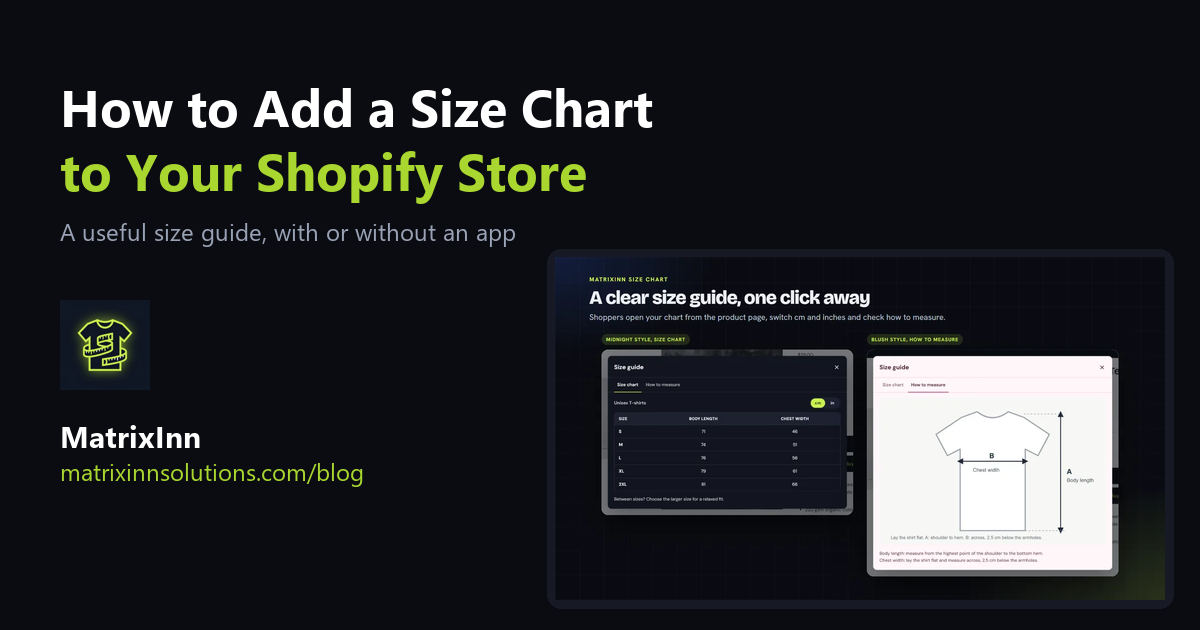
Clothing, shoes and anything that has to fit come with the same question: "What size should I order?" If your product page does not answer it, shoppers guess, order two sizes, or leave. A size chart on Shopify answers it where the decision is made. This guide shows how to make a size chart that is actually useful, how to add it to your product pages with or without an app, and the mistakes that make size guides confusing.
What Makes a Size Chart Useful
A table of numbers alone is not enough. A good size guide has:
- Measurements people can check. Chest, waist, hip, length or foot length, in the unit your customers use. Say whether the numbers are the body measurement or the garment measurement; they are not the same, and mixing them up is the most common cause of wrong sizes.
- Both units where you sell in different countries. Centimetres and inches, with a way to switch, so nobody has to convert in their head.
- A "how to measure" note. One sentence and a picture per measurement ("measure around the fullest part of the chest, keep the tape level"). Without it, people measure differently from you.
- The right chart for the right product. Men's shirts, women's dresses and sneakers need different tables. One chart for the whole store confuses more than it helps.
- Easy to open on a phone. Most shoppers will read it on a small screen.
Before You Build It: Gather the Numbers
- Ask your supplier or manufacturer for the size table. If you make the products yourself, measure a sample of each size flat.
- Decide whether you show body or garment measurements and label it clearly.
- Keep one spreadsheet (Google Sheets or Excel) with a tab per product type. This is also the easiest thing to paste into an app later.
Option 1: A Size Guide Page (No App)
This costs nothing and works on any theme:
- In your Shopify admin go to Online Store → Pages → Add page and call it "Size guide".
- Insert your table in the page editor (or add an image of the table) and add the how-to-measure text.
- Save, then link to the page from your product description or menu, for example "Size guide", pointing to
/pages/size-guide.
The limits are real: the shopper leaves the product page to read it, you have one page for all products (or several pages you must link by hand), there is no unit switch, and the table can be hard to read on a phone.
Option 2: A Size Guide App (Popup on the Product Page)
An app opens the chart on the product page itself, so the shopper does not lose the product. We built MatrixInn Size Chart, which is on the Shopify App Store with a free plan. It adds a "Size guide" link that opens your chart in a popup (a bottom sheet on phones). The free plan shows one chart on every product; Pro ($1.99 per month, 7-day free trial) adds more charts and product rules. Setup:
Step 1: Install the app
Add the app from the App Store. The free plan has no time limit and needs no card. You can try Pro later with a 7-day free trial, billed through Shopify at $1.99 per month.
Step 2: Create your first chart
Go to Charts → New chart and pick a template (such as Unisex T-shirts) or start blank. Edit the table, or paste one straight from Google Sheets or Excel with Paste a table. Tick cm/in on the columns that are measurements: shoppers can then switch units and only those columns are converted. On Pro you can also add a how-to-measure tab with text and an image, and import or export charts as CSV.
Step 3: Choose which products show the chart
On the free plan your chart shows on every product, which suits a store that sells one kind of item. On Pro, under Show this chart on choose All products, or a product tag, product type, vendor, collection or a single product. If more than one chart matches a product, the first one in the list wins, so put the more specific chart first.
Step 4: Add the link to your product page
On the dashboard click Add to product page. The theme editor opens with the Size guide block added: drag it under the size picker and click Save. There is no theme code to edit. It works with themes that support app blocks (Online Store 2.0 themes). Pro also has a side drawer and a floating "Size guide" tab.
Step 5: Check it on a phone
Open a product on your phone, tap Size guide and switch cm and inches. On Pro, products that match no chart show no link, which is expected.
Which Option Fits You?
| Size guide page | App | |
|---|---|---|
| Cost | Free | Free plan; Pro $1.99/month (7-day trial) |
| Opens on the product page | No, a separate page | Yes, popup (side drawer on Pro) |
| Different chart per product type | Several pages, linked by hand | Free: one chart on every product. Pro: rules by tag, type, vendor, collection |
| cm / in switch | No | Yes, on measurement columns |
| Paste from a spreadsheet | Rebuild the table | Paste on free; CSV import and export on Pro |
| Phone layout | Depends on the table | Bottom sheet on phones |
With a handful of products and one table, a page is enough. If one chart fits every product, the free plan of an app gives you the popup and the cm/in switch at no cost. If you sell several product types, you need several charts: that is Pro, or several pages.
Mistakes That Make Size Guides Confusing
- Mixing body and garment measurements. Say which one you show.
- One chart for every product. Match the chart to the product type.
- Only one unit. International shoppers need the other one.
- Numbers without instructions. Add how to measure.
- A chart nobody sees. Put the link next to the size picker, not at the bottom of the page.
- Never updating it. When a supplier changes a size, change the chart the same day.
Frequently Asked Questions
Does Shopify have a built-in size chart?
Not as a ready feature on every theme. You can add a page or an image yourself, or use an app. Some themes include a size guide section, so check your theme first.
Can I use a table I already have in Excel or Google Sheets?
Yes. In MatrixInn Size Chart you copy the table and paste it into the chart editor, on the free plan too. On Pro you can also import a CSV file and export any chart as CSV, so your charts are never stuck in the app.
Is the app free?
There is a free plan with no time limit: one chart on every product, a popup with a cm/inch switch and two styles. Pro costs $1.99 per month with a 7-day free trial and adds unlimited charts, product rules, the side drawer and floating tab, a how-to-measure tab, all 6 styles and your colors.
Will it work with my theme?
The size guide is an app block you add in the theme editor, so it works with Online Store 2.0 themes that support app blocks. On Pro there is also a floating tab as an alternative. It does not edit your theme code.
What data does the app store?
Your charts, rules and settings are saved in your own store. The app requests no access to your products, orders or customers, sets no cookies and sends nothing about shoppers to us.
Need something the apps do not do, such as size recommendations from a customer's measurements? Tell us what you need and we can build it. You may also like our guide to adding product tabs to Shopify, a good place for shipping, returns and care information next to your size guide.