
How to Add a Free Shipping Bar to Your Shopify Store (and Set the Right Goal)
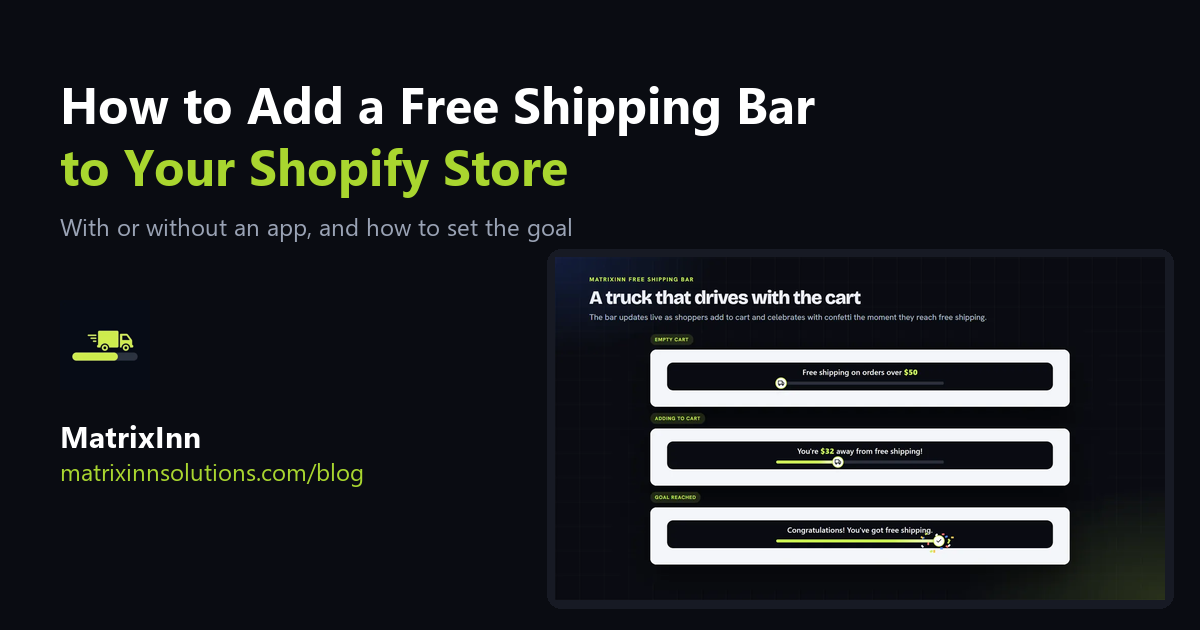
"Free shipping over $50" is one of the most common offers on Shopify stores, but a line of text in the header does not tell shoppers how close they are. A free shipping progress bar does: it shows how much more to add to the cart to reach free shipping, and updates as the cart changes. This guide shows how to add one to Shopify with and without an app, how to pick a goal that does not lose you money, and the mistakes that make the offer confusing.
Step 1: Set Up Free Shipping Itself First
A bar is only a message. The offer has to be real at checkout, otherwise shoppers see "Free shipping unlocked" and then pay for shipping, which is worse than having no bar. In your Shopify admin:
- Go to Settings → Shipping and delivery and open Manage rates for the shipping profile you use.
- Click Add rate, set the name to something like "Free shipping" and the price to 0.
- Click Add conditions, choose Based on order price and enter your minimum, for example 50.
- Save, then test with a cart above and below the minimum.
Do this for each market (country or region) where you want the offer. If you sell in several currencies, the minimum is set per rate, so check each one.
Step 2: Choose a Goal That Works for You
The goal is the amount where shipping becomes free. Too low and you pay the shipping on small orders; too high and shoppers give up. A simple way to choose it:
- Know your average order value (AOV). You find it in Analytics in Shopify. A goal slightly above your AOV nudges shoppers to add one more item.
- Know what shipping costs you. Take the average carrier cost for your usual parcel. Your margin on an order at the goal must cover that cost.
- Test with a few numbers. Our free shipping cost calculator and the guide how to set a free shipping minimum help you check the numbers before you publish the offer.
Option 1: A Text Banner (No App)
If you only want to announce the offer, most themes include an announcement bar:
- Go to Online Store → Themes → Customize.
- Open the Announcement bar section at the top (add it if your theme has it but it is off).
- Write a message such as "Free shipping on orders over $50" and click Save.
It is free and takes a minute. The limit is that it says the same thing to everyone: it does not know what is in the cart, does not show progress, and does not change for shoppers in other currencies.
Option 2: A Live Free Shipping Bar App
An app reads the cart and shows progress to the goal as it changes. We built MatrixInn Free Shipping Bar, which is on the Shopify App Store with a free plan. The free plan gives you a store-wide bar at the top or bottom of the page, your own goal and three messages. Pro ($1.99 per month, 7-day free trial) adds free shipping applied at checkout, an animated truck and confetti, and more. Setup:
Step 1: Install the app
Add the app from the App Store. The free plan has no time limit and needs no card. You can try Pro later with a 7-day free trial, billed through Shopify at $1.99 per month.
Step 2: Turn on the app embed
On the dashboard click Turn on embed. The theme editor opens with the bar switched on. Click Save. There is no theme code to edit.
Step 3: Set your goal and messages
Open Bar & Settings. The goal starts at 50 in your store's currency: change it to your free shipping amount. Write the three messages: for an empty cart, a cart on its way and a cart that has reached the goal. Drag the sample cart total in the preview to see all three states.
Step 4: Pick the look and the place
On the free plan choose one of 3 styles (Midnight, Clean or Mono) and show the bar at the top or bottom of the store. Pro adds 9 styles, your own colors and gradients, the animated truck, stripes and confetti, the bar inside product and cart pages, rules for pages, devices and dates (for example a sale week), and a clickable bar with a close button.
Step 5: Make checkout match the bar
On the free plan the bar only shows progress, so the free shipping rate from Step 1 above must match your goal. On Pro the app can also keep an automatic Shopify discount in step with your goal, so checkout gives free shipping when the cart reaches it, and you can switch that off if you prefer your own rate. Either way, test it: add items until the bar says the goal is reached and check that shipping is free at checkout.
| Free plan | Pro ($1.99/month, 7-day trial) | |
|---|---|---|
| Bar position | Store-wide, top or bottom | Also inside product and cart pages |
| Goal and messages | Your goal and 3 messages | Separate goal per currency |
| Styles | 3 styles | 9 styles, your colors and gradients |
| Animation | No | Truck, stripes, confetti |
| Free shipping at checkout | No (use your own rate) | Yes, optional automatic discount |
| Page, device and date rules | No | Yes |
Mistakes That Make the Offer Confusing
- The bar and checkout disagree. The most common problem and the most costly for trust. Always test a cart above the goal.
- One goal for every currency. 50 USD is not 50 in another currency. The free plan shows your goal converted into each shopper's currency, so check the result; Pro lets you set a separate goal for each currency.
- A goal that loses money. Check the margin on an order at the goal against the shipping cost, not only the shipping rate.
- A bar that covers the page on a phone. Check it on a phone, with the cart drawer open.
- Forgetting to end it. If the offer is for a sale, set an end date so the bar and the shipping rate stop together.
Frequently Asked Questions
Does a free shipping bar increase sales?
It can make the offer clearer, and some shoppers add an item to reach the goal, but results depend on your products, prices and goal. We do not promise a number: test it on your store and compare your average order value before and after.
Do I need to edit my theme code?
Not with MatrixInn Free Shipping Bar. You switch on the app embed once in the theme editor; on Pro, to show the bar inside product pages you add its app block in the same editor. The app does not change your theme files or your cart.
What data does the app use?
The bar reads the cart total in the shopper's own browser to show progress, and that is not sent to us. The app requests no access to your products, orders or customers; its only write access is the free shipping discount, which Pro uses. It sets no cookies on your storefront.
Is the app free?
There is a free plan with no time limit: a store-wide bar, your goal and three messages. Pro costs $1.99 per month with a 7-day free trial, and you can go back to the free plan at any time.
Does Shopify have a free shipping bar built in?
Shopify lets you set a free shipping rate with a minimum order, and most themes have an announcement bar for text, but a live progress bar that follows the cart needs an app or custom code.
Want the bar to match a very specific rule, such as different goals for wholesale customers or collections? Tell us what you need and we can build it. You may also like our guide to showing an estimated delivery date on Shopify.