
How to Show an Estimated Delivery Date on Shopify Product Pages
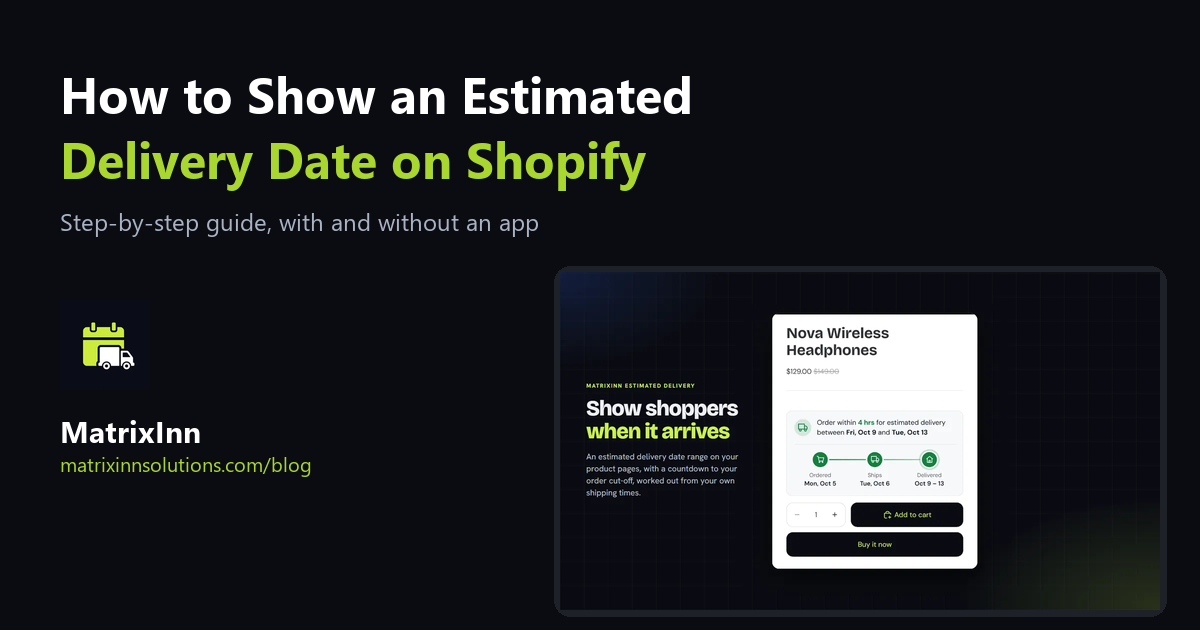
"When will it arrive?" is one of the first questions a shopper asks, and if your product page does not answer it, many of them leave to look for the answer somewhere else. An estimated delivery date on the Shopify product page answers it before they have to ask, right next to the Add to cart button.
This guide shows how to work out a delivery estimate that is honest, how to show it on Shopify with or without an app, and the mistakes that make estimates wrong.
What Goes Into a Delivery Estimate
A good estimate is not a guess. It comes from four numbers you already know about your own shipping:
- Order cut-off time. The latest time an order can come in and still be packed the same day, for example 2:00 PM.
- Working days. The days you pack and hand over parcels, usually Monday to Friday.
- Processing time. How many working days it takes you to pack an order, often 1 day.
- Shipping time. How long your carrier usually takes, as a range, for example 3 to 5 working days.
Add holidays (days you do not ship) and, if you ship abroad, a different shipping time for each country. The estimate is then: order day (or the next working day if the order comes after the cut-off) + processing days + shipping days, skipping weekends and holidays. Showing it as a range, such as "between Fri, Oct 9 and Tue, Oct 13", is more honest than a single date, because carriers are not exact.
A worked example
| Setting | Value |
|---|---|
| Cut-off | 2:00 PM, Monday to Friday |
| Processing | 1 working day |
| Shipping | 3 to 5 working days |
| Order placed | Tuesday 11:00 AM (before the cut-off) |
The order ships on Wednesday and arrives between the following Monday and Wednesday. The same order placed on Tuesday at 4:00 PM misses the cut-off, ships on Thursday and arrives one working day later. That one-day difference is exactly why a countdown to the cut-off ("Order within 3 hrs for delivery by Monday") gives shoppers a real reason to order now instead of later.
Option 1: A Fixed Line of Text (No App)
If your shipping times are the same for every product and you only ship to one country, the simplest approach is a short line of text on the product page:
- In your Shopify admin go to Online Store → Themes → Customize.
- Open a product page template (Products → Default product).
- Click Add block and choose Text, then move it under the price or the Add to cart button.
- Write something like "Ships within 1 working day. Delivery usually takes 3 to 5 working days." and click Save.
This costs nothing, but it cannot show an actual date, does not know about your cut-off time, weekends or holidays, and says the same thing on every product. Shoppers have to do the date maths themselves, and "3 to 5 working days" is easy to skip over.
Option 2: An Estimated Delivery App (Real Dates and a Countdown)
An app works out the actual dates for each visitor, at the moment they look at the page. We built MatrixInn Estimated Delivery for this, and it is on the Shopify App Store. Here is the setup from start to finish.
Step 1: Install and start the trial
Install the app from the App Store and click Start free trial on its dashboard. There is a 14-day free trial, then it is $0.99 per 30 days, billed through Shopify.
Step 2: Add the block to your product page
On the dashboard, click Add to product page. The theme editor opens on your product template with the Delivery date block already added and showing a date. Drag it to where you want it (under the Add to cart button works well) and click Save. There is no theme code to edit.
Step 3: Enter your times
Open Settings and fill in the four numbers from the first section: working days, order cut-off time, processing time, and the fastest and slowest shipping time. The app uses your store's time zone from Shopify, so a 2:00 PM cut-off means 2:00 PM where you are, not where the shopper is.
Step 4: Add holidays, countries and tag rules
Add the days you do not ship, such as public holidays, so they are skipped. If you ship internationally, set a shipping time for each country; the shopper's country picks the right one. For products that take longer, such as made-to-order items, add a product tag and give that tag extra days, or hide the estimate on those products completely.
Step 5: Pick a layout and test it
Choose a simple Box or a Timeline (Ordered, Ships, Delivered), one of 6 styles or your own colors, and your own wording. Before you save, use Test a date and time to check a Friday evening order, a holiday week or a different country, so you see exactly what shoppers will see.
Common Mistakes That Make Estimates Wrong
- Using your best case as the estimate. If your carrier takes 3 to 7 days, do not show 3. Late parcels cost more trust than a slightly longer estimate.
- Forgetting the cut-off. Without it, an order placed at 11 PM looks like it will ship that day.
- Forgetting holidays. Estimates over a holiday week are the ones most likely to be wrong, and the ones shoppers check most carefully.
- Calling it a guarantee. Use words like "estimated" or "expected". The estimate does not change your shipping rates or your carrier's real times.
- Never updating it. If you change carriers or your packing time slips in a busy season, update the settings the same day.
Frequently Asked Questions
Does Shopify show a delivery date by default?
Shopify can show delivery times for shipping rates at checkout, depending on your carrier settings, but most themes do not show a delivery date on the product page. That needs a text block (Option 1) or an app (Option 2).
Will a delivery date slow down my product page?
It should not. MatrixInn Estimated Delivery works out the dates in the shopper's browser with a small script, does not set cookies and does not send anything to our servers. If the script cannot run, the block hides itself instead of leaving an empty box.
Can I show different dates for different products?
Yes, with product tags: give a tag extra days, or hide the estimate for tagged products. Different countries can have different shipping times too.
If you also want to answer shipping and returns questions on the same page, see our guide to adding product tabs to Shopify. And if your store needs something custom, such as delivery dates from a carrier's live API, tell us about it.