
How to Add Product Tabs to Shopify (Shipping, Returns, FAQ)
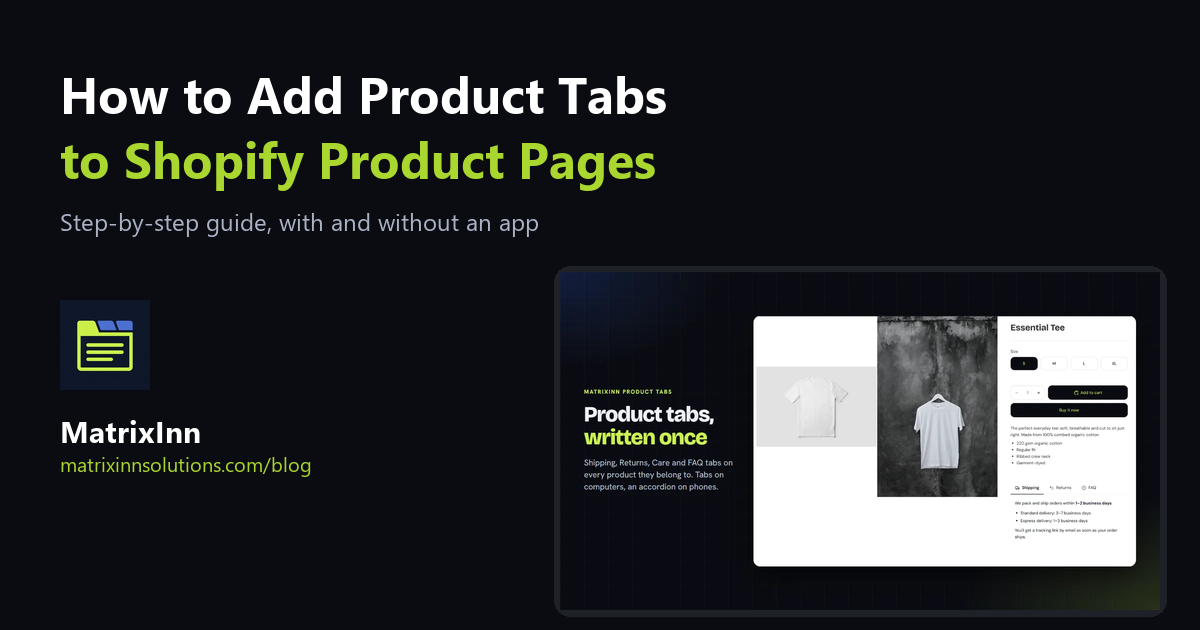
A Shopify product description often turns into one long wall of text: the product story, sizes, materials, care instructions, shipping, returns and a few FAQs, all in one block. Shoppers scroll past most of it, and the one answer they were looking for gets lost. Product tabs split that information into short sections, such as Description, Shipping, Returns and FAQ, so each shopper opens only what they need.
This guide covers what belongs in tabs, three ways to add them to Shopify, and how to avoid copying the same shipping text into hundreds of products.
What to Put in Product Tabs
Most stores need four or five tabs at most. More than that and tabs become a maze of their own.
| Tab | What goes in it | Same on every product? |
|---|---|---|
| Description | The product story, key features | No |
| Size & fit / Specs | Measurements, materials, dimensions | Often per product type |
| Shipping | Processing time, carriers, costs, countries | Usually yes |
| Returns | Return window, conditions, how to start a return | Usually yes, except final-sale items |
| Care / FAQ | Washing, storage, common questions | Per category |
Notice the last column. Shipping and Returns are usually the same across the whole store, and Care or Specs are usually the same within a category. That is the real problem tabs need to solve: writing that shared text once, not hundreds of times.
Option 1: Collapsible Rows in Your Theme (No App)
Most current Shopify themes, including the free Dawn theme, have a Collapsible row block for product pages:
- Go to Online Store → Themes → Customize and open the product template.
- Click Add block → Collapsible row, give it a heading such as "Shipping", and write the text or pick a page as its content.
- Repeat for each tab and click Save.
This is free and works well when every product gets the same rows. The limits show up when products differ: every product on that template shows the same rows, so a "Returns" row also appears on final-sale items, and per-category content means creating and maintaining separate product templates. The rows are also accordions only; you cannot show them side by side as tabs on a computer.
Option 2: Metafields for Per-Product Content
If each product needs its own tab content, Shopify metafields can hold it. You create a metafield definition (for example Care instructions), fill it in on each product, and connect it to a collapsible row with a dynamic source. It is flexible and free, but it means editing every product one by one, which is exactly the work most stores want to avoid for shared text like Shipping and Returns.
Option 3: A Product Tabs App With Rules
An app can do what the theme cannot: write a tab once and show it only on the products it belongs to. We built MatrixInn Product Tabs for this, and it is on the Shopify App Store. The setup:
Step 1: Install and start the trial
Install it from the App Store and click Start free trial on the dashboard. There is a 14-day free trial, then it is $1.99 per 30 days with up to 50 shared tabs.
Step 2: Create your shared tabs
Go to Tabs → New tab and start from one of 8 templates (Shipping, Returns, Care and others) or a blank tab. The editor handles headings, lists, links, tables and images, with a live preview.
Step 3: Choose where each tab shows
Under Show this tab on, keep All products or pick a product tag, product type, vendor, collection or a single product. Then use Except on for the exceptions, for example: show Returns on all products except those tagged final-sale. Each product shows every tab that matches it, in the order of your Tabs page.
Step 4: Add the block and pick a layout
On the dashboard, click Add to product page; the theme editor opens with the Product tabs block already added. Choose Auto (tabs side by side on computers, a tap-to-open accordion on phones), Tabs everywhere or Accordion everywhere, a tab style and colors, then save. You can also show the product description as the first tab, or split it into tabs at its headings.
Tips for Tabs That Shoppers Actually Use
- Keep the first tab open. The description or the most important information should be visible without a click.
- Name tabs the way shoppers ask. "Shipping" and "Returns" beat "Policies" or "More info".
- Keep each tab short. A few lines or a small table. Link to your full policy page for the details.
- Put numbers in. "Ships in 1 to 2 working days" is more useful than "fast shipping".
- Check them on a phone. Most visits are on mobile, where an accordion is easier to use than tabs.
Frequently Asked Questions
Are product tabs bad for SEO?
Not when the content is in the page itself. Text inside tabs or accordions that is in the page HTML can still be read by search engines. MatrixInn Product Tabs renders every matching tab as plain HTML in the product page; a small script only switches between them.
Do I need to edit theme code?
No. Both the theme's collapsible rows and the app work through the theme editor. The app adds an app block, which works with Online Store 2.0 themes.
Can I hide a tab on some products?
With the theme alone, only by using a separate product template. With the app, add an Except on rule, such as a product tag.
Tabs answer shipping questions; to answer "when will it arrive?" with an actual date, see our guide to showing an estimated delivery date on Shopify. Need something built for your store? Tell us about it.