
How to Back Up and Migrate a WordPress Site (Free, No Size Limit)
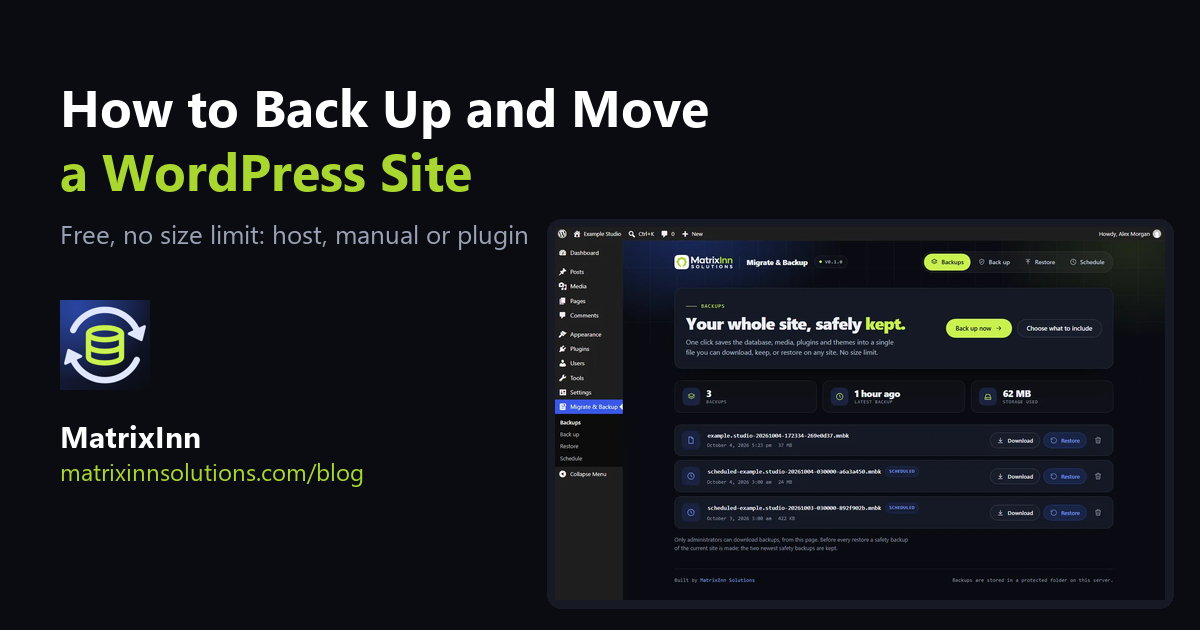
Sooner or later every WordPress site needs a full backup: before a big update, before a redesign, or because the hosting account has a problem. And often the same file is needed to move the site to a new host or a new domain. Doing both well is less about the tool and more about knowing what a complete backup contains and where it is kept.
This guide explains what to save, three ways to do it (your host, by hand, or with a plugin), how to move a site to a new address without breaking it, and the checks that tell you a backup will really restore.
What a Complete WordPress Backup Contains
A WordPress site is two things, and you need both:
- The database. Your posts, pages, comments, users, settings and most plugin data. Without it you have files but no content.
- The files. The
wp-contentfolder: your media uploads, themes and plugins. WordPress core files can be downloaded again, but your uploads and customised themes cannot.
A backup of only one of the two is a half backup. The wp-config.php file, which holds your database connection details, belongs to the server it was made for, so it is usually left out of a move.
Where Backups Should Be Kept
This matters more than the tool you pick. A backup that sits on the same server as the site is useful for a bad update, but it does not protect you if the hosting account is hacked, suspended or lost, because the backups go with it. Keep at least one recent copy somewhere else, such as your own computer or a separate cloud storage account.
Option 1: Your Host's Backup
Many hosts make daily backups and let you restore them from the control panel (cPanel, Plesk or their own dashboard). It is the easiest option and worth having, but check three things: how many days it keeps, whether you can download a copy or only restore it on the same host, and whether it is included in your plan or costs extra. A host backup is a second line of defence, not the only one, and it does not help you move to a different host.
Option 2: Do It by Hand
- Files. Connect with FTP or your host's file manager and download the
wp-contentfolder. Large media libraries can take a long time. - Database. In the control panel open phpMyAdmin, choose your site's database and click Export. The default settings give you a
.sqlfile. - Moving it. On the new host create an empty database, import the
.sqlfile, uploadwp-contentand WordPress core, and editwp-config.phpwith the new database details. - Changing the address. If the domain changes you must replace the old address with the new one in the database. Do not do this with a plain text find-and-replace: WordPress stores many settings as serialized data that records the length of each text value, and changing the text without fixing the length can silently break widgets, theme options and page-builder layouts. Use a tool that understands serialized data.
This works and costs nothing, but it takes time, needs care, and every step is a place to make a mistake.
Option 3: A Backup and Migration Plugin
A plugin packs the database and files together and does the restore and address change for you. We built MatrixInn Migrate & Backup, free on WordPress.org. It saves the database, media, plugins and themes into one .mnbk file. Backing up, downloading, uploading and restoring are all free, there is no file size limit (the limits are your disk space and your host), and it needs no account.
Step 1: Install it
Go to Plugins → Add New, search for MatrixInn Migrate & Backup, install and activate. It needs WordPress 5.8 or newer and PHP 7.4 or newer. It works on single sites; WordPress Multisite is not supported yet.
Step 2: Make a backup
Open Migrate & Backup in the admin menu and click Back up now. To choose what goes in, use the Back up tab: you can leave out folders you do not need, such as a cache folder. The steps are shown while it runs, and the page tells you when it is safe to leave. Large jobs run in small steps, so a short server time limit on cheap hosting does not stop them.
Step 3: Download a copy
Backups are stored in wp-content/minn-mb-backups/ on your own server. As explained above, a copy on the same server is not enough: use the download button in the Backups list and keep the .mnbk file on your computer or in cloud storage.
Step 4: Schedule it
On the Schedule tab choose a daily or weekly backup at the hour you want, and how many to keep, so the disk does not fill up. Scheduled backups use WP-Cron, which runs when someone visits the site. If your host has switched WP-Cron off, ask them to run wp minn-mb schedule run from a server cron job.
Step 5: Restore or move to a new site
On the new site (a fresh WordPress install with the plugin active) open the Restore tab and drop the .mnbk file in. It is uploaded in small pieces, and if the upload stops halfway you choose the same file again and it carries on from where it stopped. Before anything is changed, every file is checked against a checksum, and a damaged or incomplete backup is refused. A restore is prepared off to the side and switched in at the end, and if the switch fails it is undone. The plugin also saves a safety backup of the current site first, so you can go back if the result is not what you wanted.
If the new site has a different address, the old address is replaced by the new one everywhere in the data, including serialized values, JSON and page-builder settings, and you can add your own find-and-replace pairs on the restore screen. After the restore, open Settings → Permalinks and click Save Changes once if pages show "not found".
Which Option Fits You?
| Host backup | By hand | Plugin | |
|---|---|---|---|
| Cost | Often included, sometimes extra | Free | Free |
| Effort | Low | High | Low |
| Move to another host | Usually not | Yes | Yes |
| Change of domain handled safely | No | Only with the right tool | Yes |
| Copy you control | Depends on the host | Yes | Yes (download the file) |
| Scheduled | Yes | No | Daily or weekly |
The best setup is simple: use the host backup as a safety net, make your own downloadable backup before every big change, and test that it restores.
How to Know a Backup Will Restore
- Test it once. Restore it on a spare site or a local copy. A backup you have never restored is a hope, not a backup.
- Check the size. A backup much smaller than your site was probably cut short.
- Keep several. The newest backup may contain the problem you are trying to undo. Keep a few older ones too.
- Back up before updates. Before updating WordPress, a theme or a plugin, make a fresh backup.
Frequently Asked Questions
Is MatrixInn Migrate & Backup really free, with no size limit?
Yes. Backing up, downloading, uploading and restoring are free, with no account and no file size limit. The only limits are your disk space and your host. There is also an optional paid Pro add-on that adds password-encrypted backups and automatic copies in your own cloud storage; nothing in the free plugin was moved to Pro.
Does the plugin send my site data anywhere?
No. It makes no outside requests at all. Backups are saved in a folder with a random name on your own server and only administrators can download them. On an Nginx server, which ignores .htaccess files, add the deny rule from the plugin's readme so that folder cannot be opened from the web.
What happens to my backups if I delete the plugin?
They are kept. Deleting the plugin never deletes your .mnbk files, and they are listed again if you reinstall it.
Can I restore on a different domain or host?
Yes. That is the main use of a .mnbk file: install WordPress and the plugin on the new site, upload the file on the Restore tab, and the address is replaced for you.
Moving a large or complicated site, or a store that cannot be offline? Tell us about it and we can help plan the move. If you use WordPress for a shop and want to protect it from fake Cash on Delivery orders as well, see our COD Checkout Rules plugin for WooCommerce.