
 Chrome extension · Developer tools
 See what any website is built with.
Open a site, click the MS Stack Detector icon and see the technologies behind it, grouped into clear categories: the platform it runs on, the WordPress theme and plugins, the Shopify theme, frameworks, analytics and the hosting it sits on. Everything is worked out inside your browser.
One click, the whole stack
Platform and CMS
See which content management system or e-commerce platform the site runs on.
WordPress themes and plugins
On WordPress sites, see the active theme and the plugins found on the page. On Shopify stores, see the theme name.
Frameworks and libraries
Find the JavaScript frameworks and libraries the page uses.
Analytics and marketing tools
See the analytics, advertising, payment, chat and other third-party services the page loads.
Hosting, CDN and security headers
Get hints about the server, CDN and hosting, plus the common security headers the site sends.
Private, runs locally
It only works when you click the icon, only on the tab you are looking at. Nothing is sent anywhere, and there is no account.
See it in action
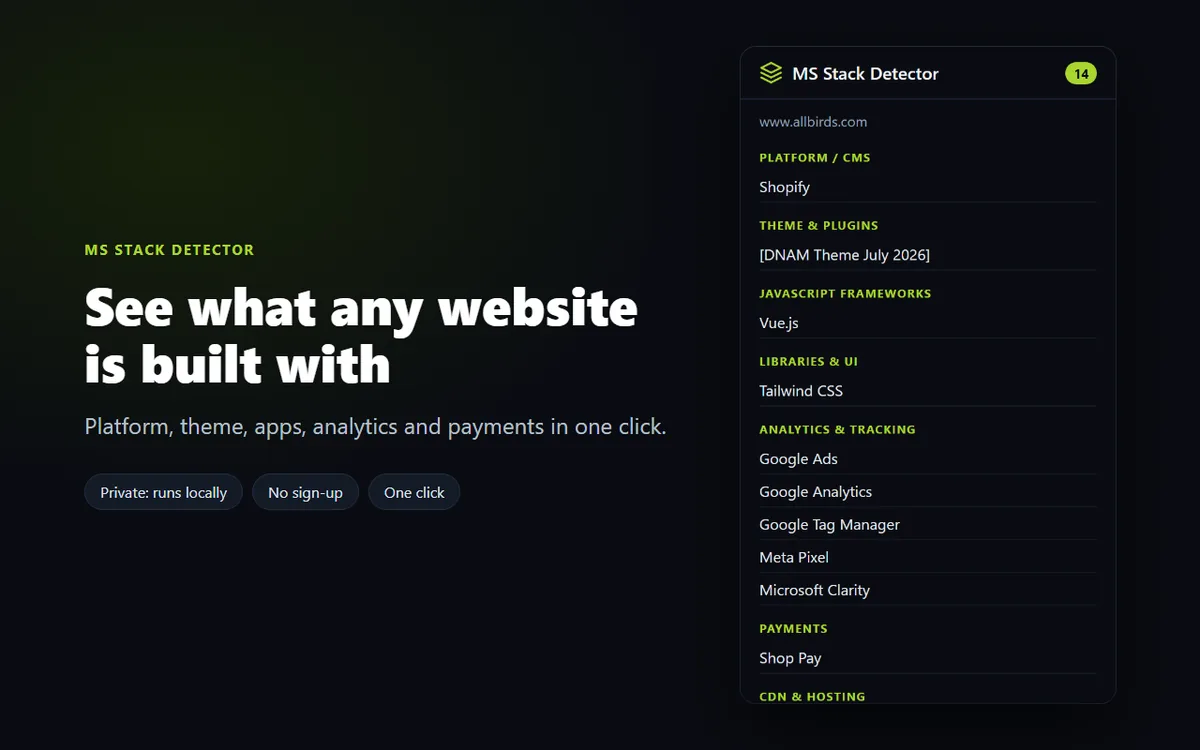
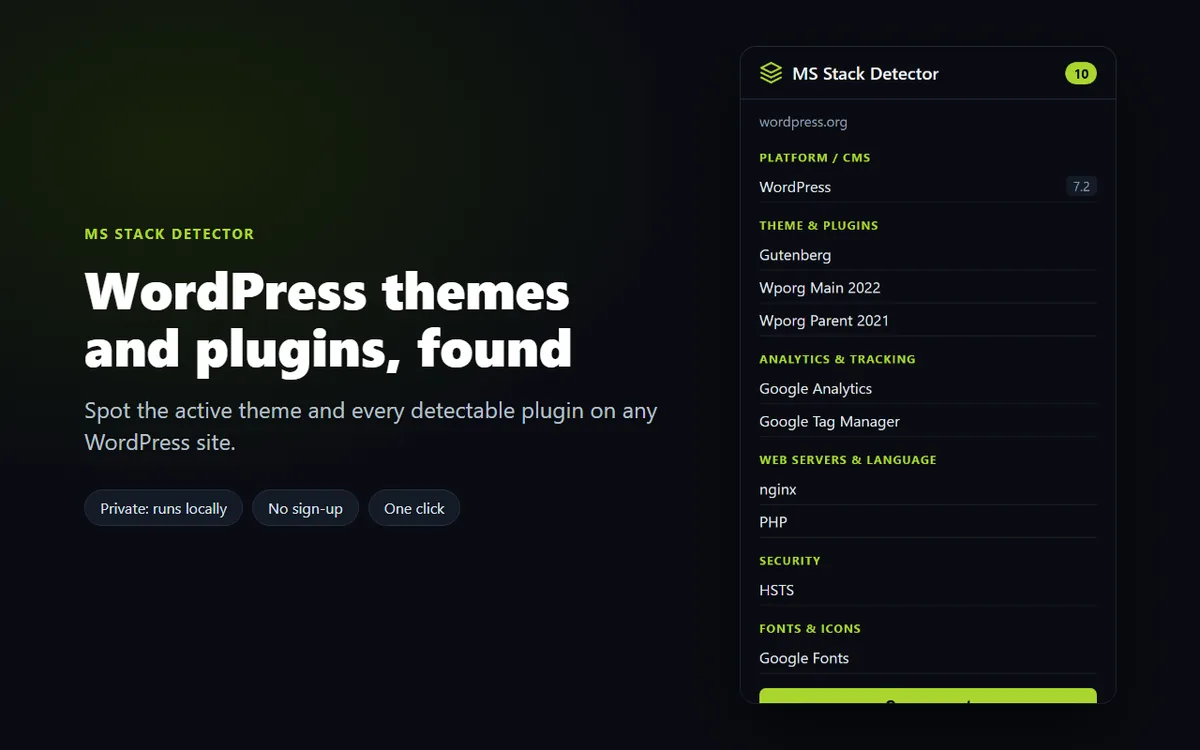
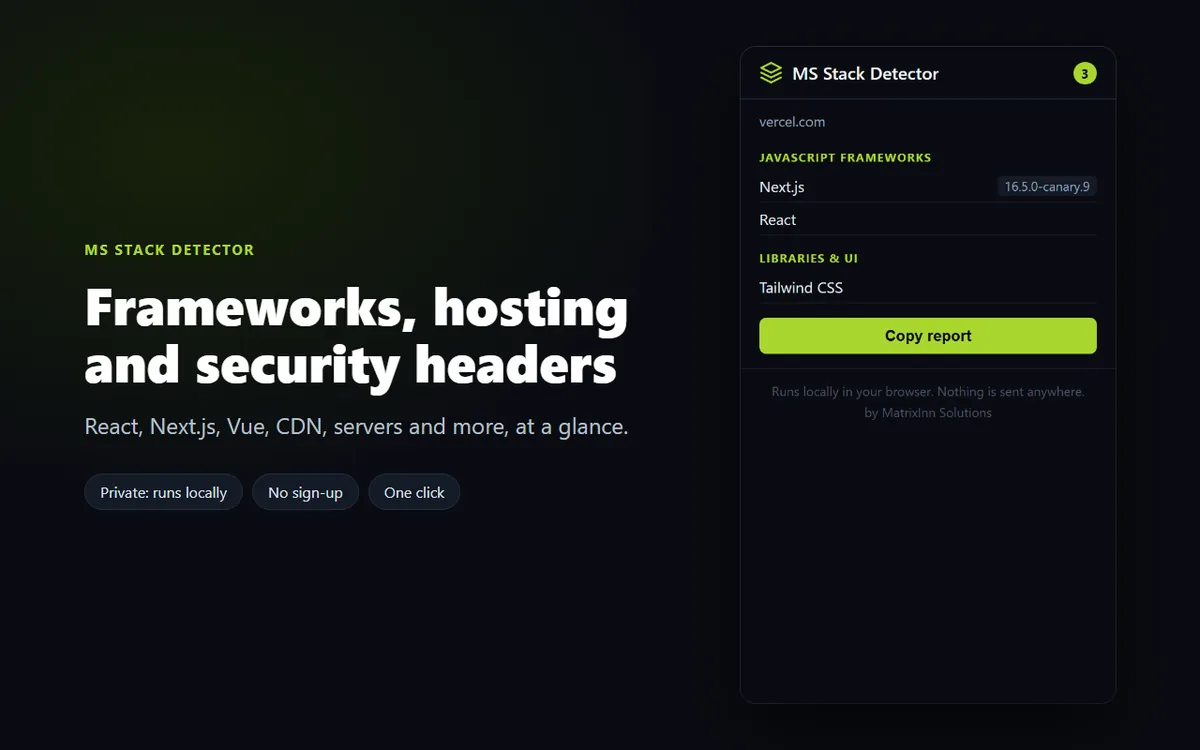
Screenshots from the Chrome Web Store listing and the extension itself.
Ready in under a minute
-
STEP 1
Add it to Chrome
Install MS Stack Detector free from the Chrome Web Store and pin the icon to your toolbar.
-
STEP 2
Open any website
Go to the site you want to check: a competitor's store, a WordPress site you like, or your own.
-
STEP 3
Click the icon
The popup lists the technologies it found, by category. Copy a plain-text report with one button.
Privacy: the extension does not collect or send your data, and settings are saved in your own browser. See our privacy policy.
Common questions
Is it free?
Does it collect my browsing data?
Can it find the theme and plugins of a WordPress site?
Why does it show less for some sites?
Who makes it?
Need a browser extension built?
We build Chrome extensions for companies, from developer tools to privacy and productivity add-ons.