
MatrixInn Migrate & Backup for WordPress
Back up, restore and move your whole WordPress site. No file size limit, restore is never locked, and big jobs run in small steps so they finish even on slow hosting.
Backup and move a site without the usual limits
Everything you need to save a site, restore it, or move it to a new address — in one free plugin.
One file, whole site
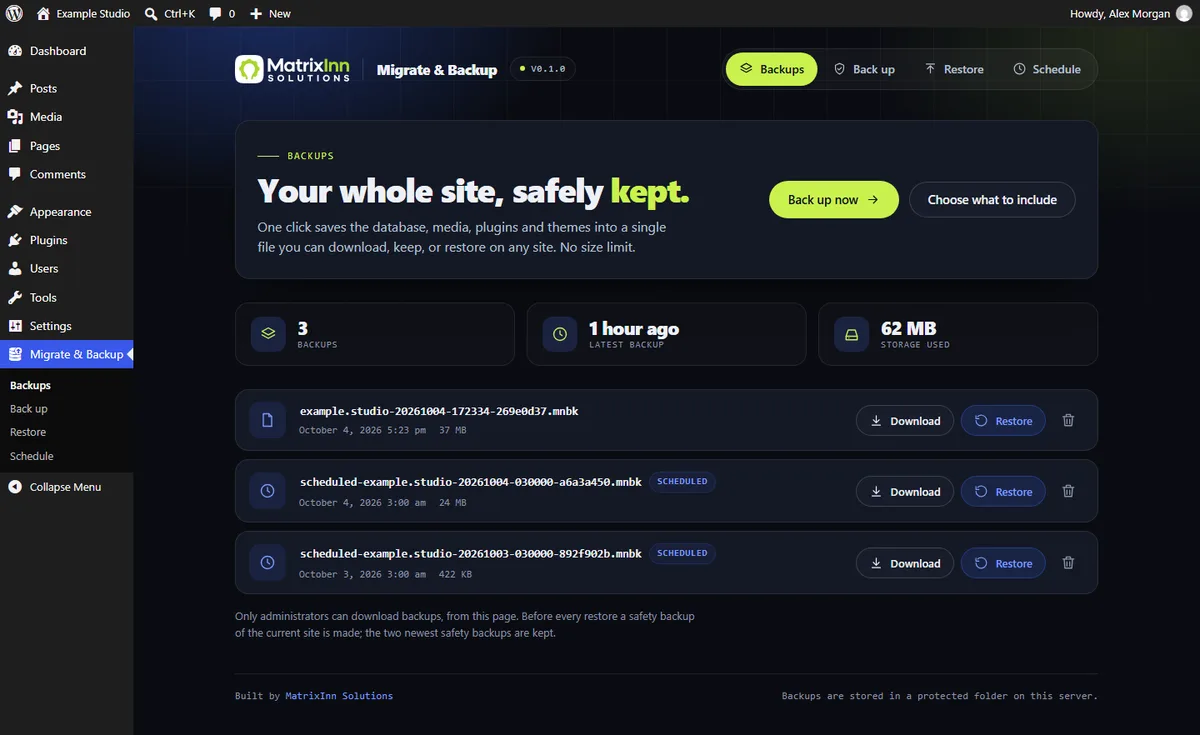
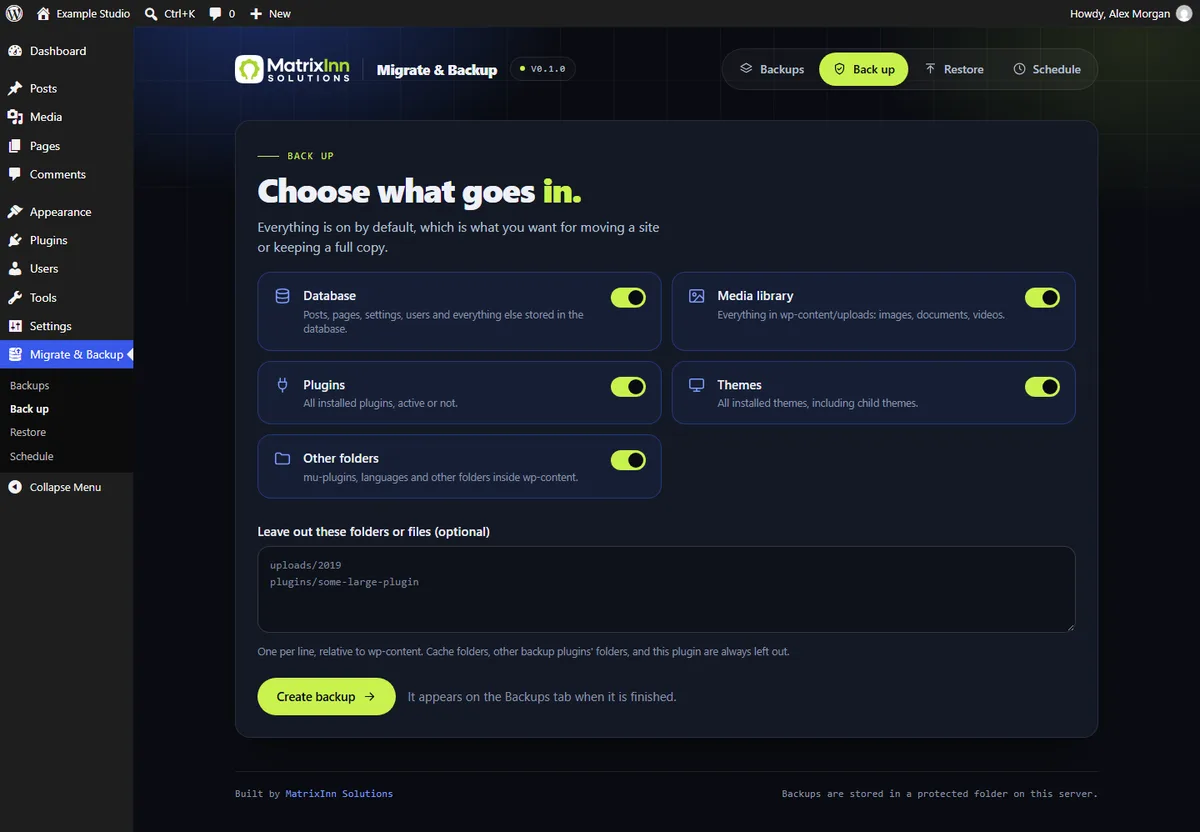
Database, media, plugins, themes and other folders are saved into a single .mnbk file you can download, keep or restore on any WordPress site. Pick what goes in and leave out folders you do not need.
Restore is free, with no size limit
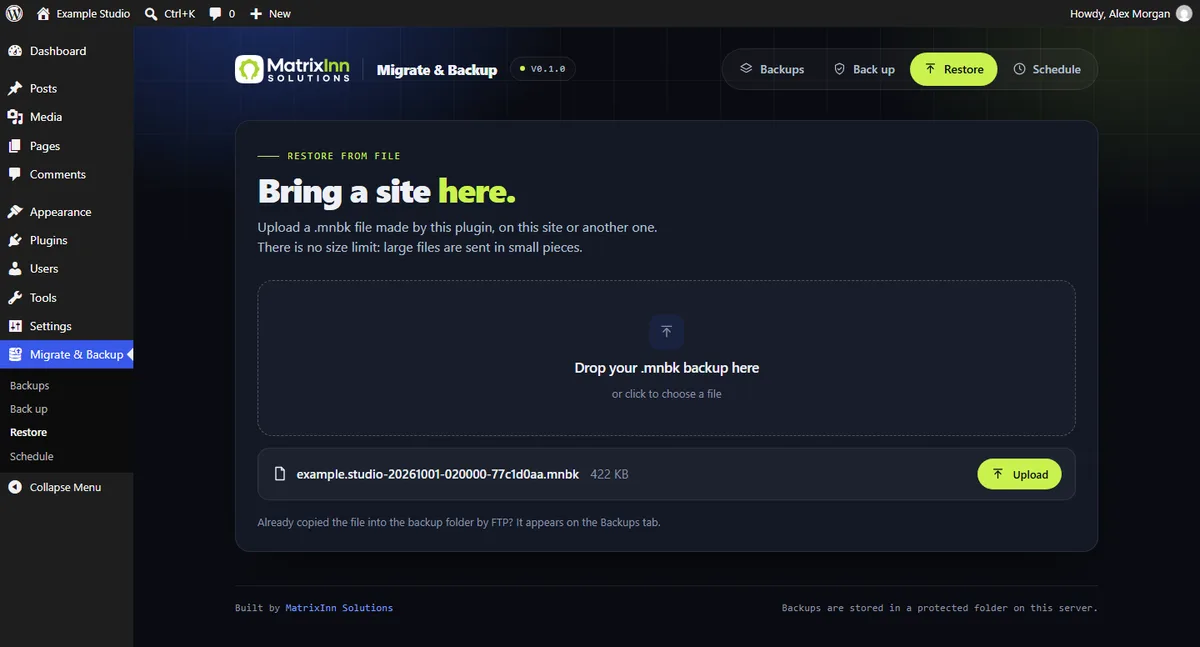
Restore from the Backups list or upload a .mnbk file made on another site. The only limits are your disk space and your host.
Move to a new address
The old site address is replaced by the new one everywhere, including serialized data, JSON and page-builder settings, without breaking them. Add your own find-and-replace pairs if you need more.
Built for slow hosting
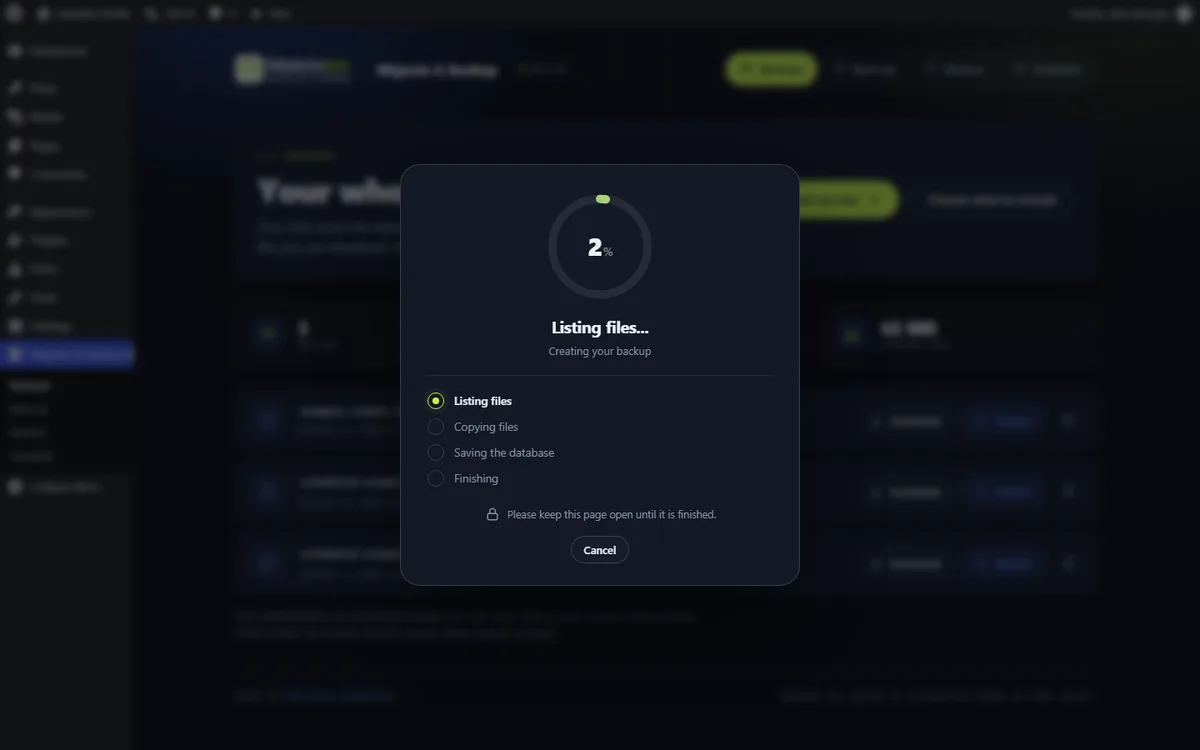
Backup and restore run in small steps, so a short server time limit does not stop them. Uploads are sent in small pieces and continue where they stopped, even after a page reload.
Safe by design
A restore is prepared off to the side and switched in at the end; if the switch fails it is undone. Every file is checked against a checksum first, and wp-config.php is never overwritten. A safety backup is saved before every restore.
Scheduled backups
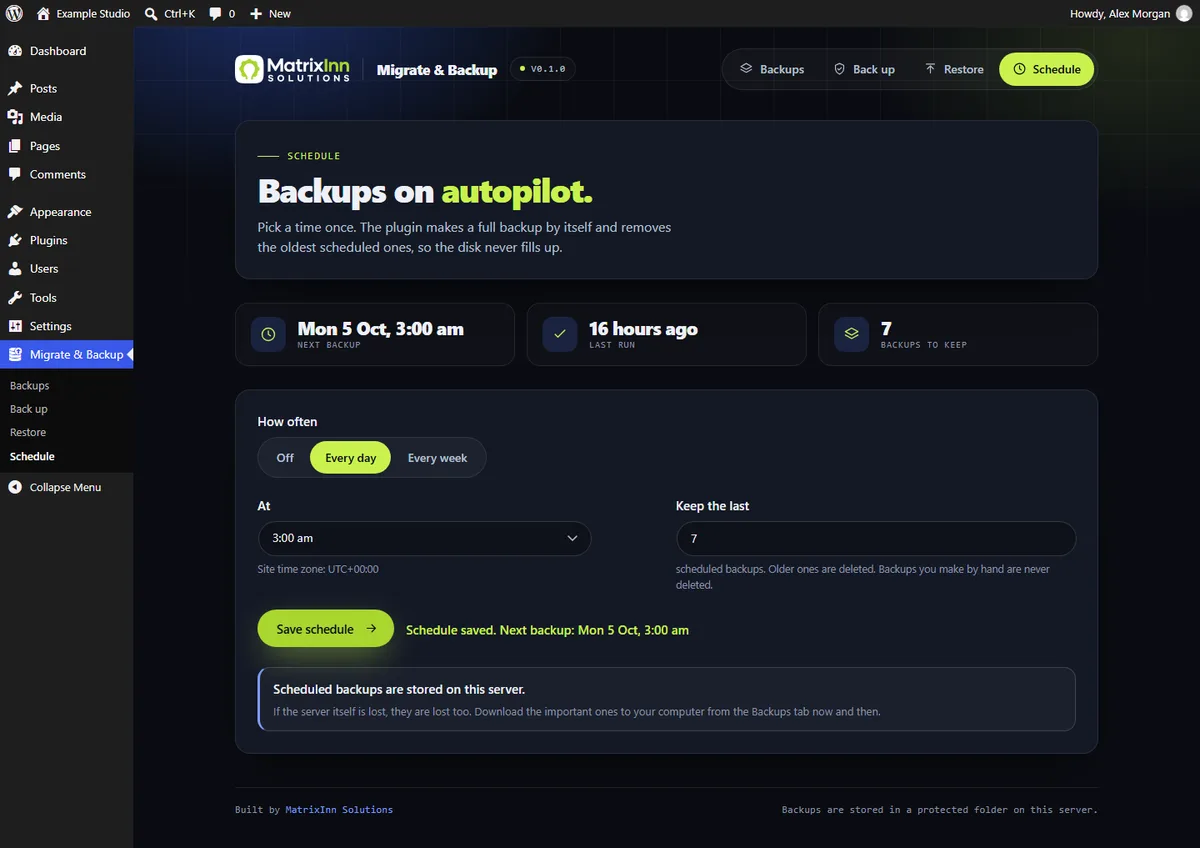
Daily or weekly, at the hour you choose, keeping only the last few so the disk never fills up. Hosts that switch off WP-Cron can use a server cron job.
WP-CLI
wp minn-mb export, import, list, delete and schedule, with no web server time limit.
Private by default
Nothing is sent to any outside server. There are no ads, no tracking and no upsell notices. Backups are only downloadable by administrators.
See it in action
Encrypted backups, kept off your server
The free plugin backs up and restores everything. Pro adds password encryption and copies in your own Google Drive or cloud storage, so a lost, hacked or closed hosting account does not take your backups with it.
Free 14-day trial with no card needed, then a 14-day money-back guarantee if Pro does not work for you and we cannot fix it. Secure checkout and invoices by Freemius, our reseller. Pro needs the free plugin from WordPress.org.
Set up Pro in about 10 minutes
Follow these steps once. After that every backup is encrypted and copied off your server by itself.
-
1
Install the free pluginIn WordPress go to Plugins › Add New, search for MatrixInn Migrate & Backup, install and activate it. Pro is an add-on and needs it.
-
2
Get ProPick a plan above, or start the 14-day free trial (no card needed). The email from Freemius, our reseller, has your license key and the download link for
matrixinn-migrate-backup-pro.zip. -
3
Upload and activate ProPlugins › Add New › Upload Plugin, choose the zip, install and activate. Then open Migrate & Backup › Pro license and paste the license key.
-
4
Set a backup password (optional)On the Encryption tab, switch encryption on and set a password. Keep it somewhere safe: nobody, not even we, can open a backup without it.
-
5
Connect your cloudOn the Cloud tab, keep Google Drive as the storage and click Connect Google Drive. Choose your Google account and click Allow. You are back on the Cloud tab with “Google Drive is connected”. The add-on can only see the backup files it creates, nothing else in your Drive.
-
6
Make a backupClick Back up now. When it is done, the backup is sent to your cloud by itself; the Cloud tab shows the upload and the list of backups In the cloud. Scheduled backups go up the same way.
-
7
Restore from the cloudCloud tab › Copy to this site on the backup you want. It appears in the Backups list; click Restore. On a new site, install both plugins, connect the same cloud and do the same.
Cloudflare R2
Create a bucket in R2, then R2 › Manage API tokens › create a token with Object Read & Write for that bucket. Endpoint: https://<account id>.r2.cloudflarestorage.com, region auto.
Backblaze B2
Create a private bucket, then Application Keys › add a key for that bucket with read and write. The bucket page shows the endpoint, for example https://s3.us-west-004.backblazeb2.com; the region is the part after s3..
Amazon S3
Create a bucket and an IAM user with list, read, write and delete rights on that bucket only, then create an access key for it. Choose the bucket’s region.
Wasabi, DigitalOcean Spaces, MinIO
Create a bucket and an access key; the endpoint and region are shown in the provider’s S3 settings.
Good to know
What’s new
New: A clearer card about the optional Pro add-on (cloud copies and encryption) on the Backups screen, and once on the WordPress Dashboard for administrators after a few days. It can be dismissed for good and never shows when Pro is active. Backups and restores are unchanged.
Fixed: On hosts that lock some plugin or must-use plugin folders (for example WordPress.com keeps plugins/akismet and its own mu-plugins), a restore no longer stops with "Could not move ... out of the way: Operation not permitted". Those locked folders are kept as they are on the site, everything else is restored, and the result names what was kept.
New: The upload of a backup file shows its progress in percent beside the bar and at the start of the progress line. New: A "Cancel upload" button while a file uploads. Cancelling removes the part that was already sent from the server.
New: A short note about the optional Pro add-on (encrypted backups, copies in your own cloud storage) under the Backups list and on the Schedule tab. It is hidden once Pro is installed. Nothing in this plugin was moved to Pro.
Ready for the new Pro add-on (encrypted backups and your own cloud storage): encrypted backups are marked in the Backups list and restoring one asks for its password, and a restore keeps the site’s add-on settings. Password fields and dialogs now match the rest of the screen. Backups from earlier versions keep working.
First version: back up, download, upload, restore and delete from the admin screen. Resumable steps, safety backup before every restore, checksums, address replacement that keeps serialized data valid, daily or weekly scheduled backups and WP-CLI commands.
Common questions
Is MatrixInn Migrate & Backup free?
Yes. Backing up, downloading, uploading and restoring are all free, with no size limit and no account.
Where are my backups stored?
In wp-content/minn-mb-backups/ on your own server, in a folder with a random name. A backup on the same server does not protect you if the server is lost, so download important backups now and then. Uninstalling the plugin keeps your backups.
Can I restore a backup on a different domain?
Yes. The old site address is replaced by the new one everywhere in the data, serialized values included, and post GUIDs are never changed.
An upload stopped halfway. Do I have to start again?
No. Choose the same file again and it continues where it stopped.
Does it work on WordPress Multisite?
Not yet. The plugin tells you so and does nothing.
Does the plugin send data to other servers?
No. It makes no outside requests at all.
Questions or moving a big site?
We’re happy to help you back up, restore or move a site. Reach the team directly and we’ll reply within one business day.
info@matrixinnsolutions.com